How to Build a Color Palette Generator in JavaScript: Harmony Modes, Lock & CSS Export (Free Source Code)
Build a colour palette generator in JavaScript with harmony modes, locked colours, copy-to-clipboard and CSS export — step-by-step tutorial with free source code.
 CodeFree Team
November 18, 2026
10 min read
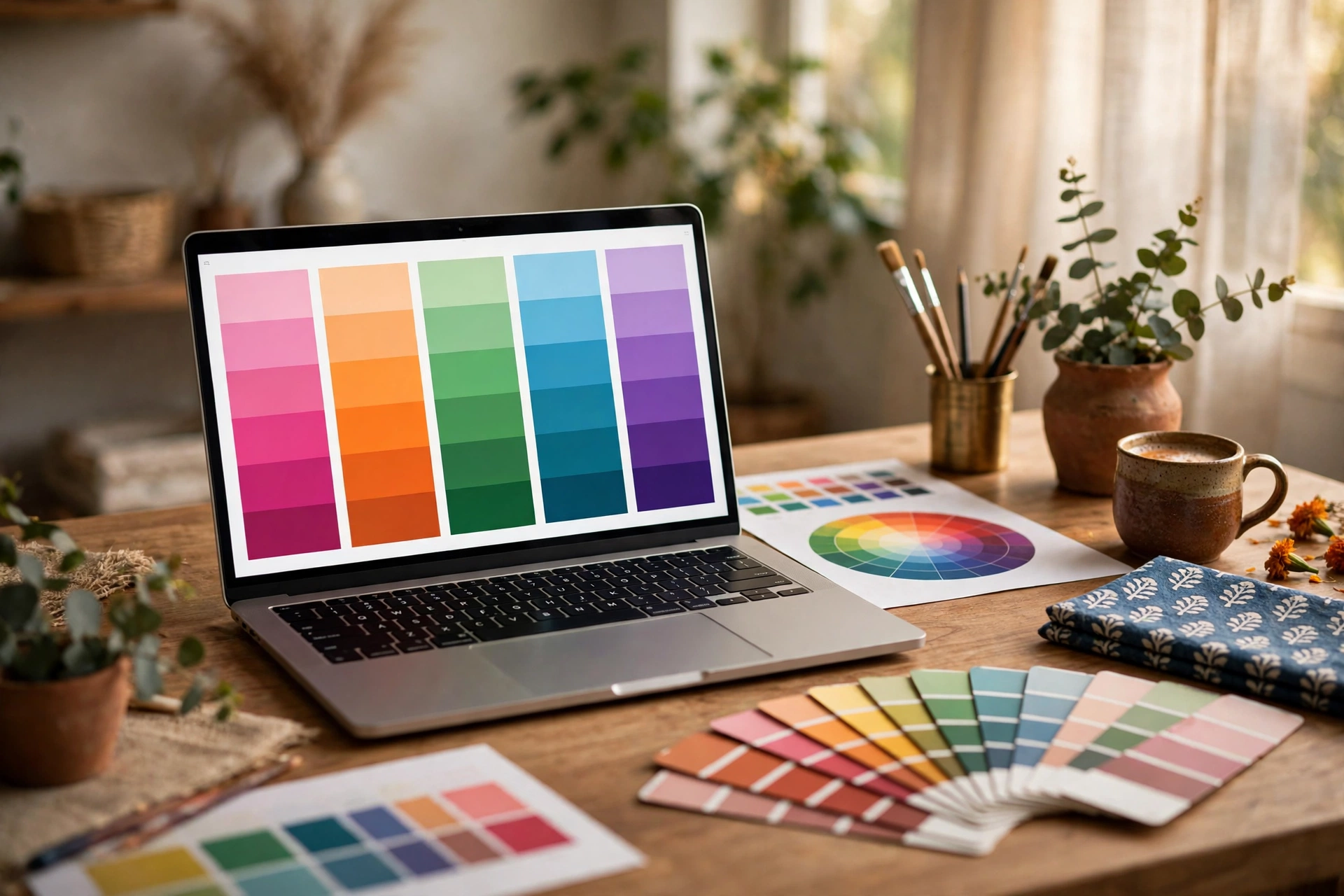
Picking colours is the part of web design where most beginners get stuck. You open a colour picker, click something that looks nice, add a second colour that clashes, and suddenly your website looks like a festival poster. A colour palette generator fixes this by doing the colour theory for you: press a button, get five colours that actually belong together, lock the ones you love, and export the result straight into your CSS.
In this tutorial, you will build exactly that — a colour palette generator in plain JavaScript, with harmony modes, a lock feature, copy-to-clipboard, CSS export, and saved palettes. No frameworks, no build tools, just HTML, CSS and JavaScript. And if you would rather skip the typing, you can download the finished Color Palette Generator source code free from CodeFree and follow along with the working app open in another tab.
What a Colour Palette Generator Does (and Why Harmony Matters)
A palette generator creates a set of colours — usually five — that work together as one scheme. The trick is that it does not pick five random colours. Random colours almost always clash, because colour harmony is not a matter of taste; it is geometry. Colours that sit at fixed distances from each other on the colour wheel look pleasing together, and that rule holds whether you are designing a startup landing page in Bengaluru or a wedding invitation site in Jaipur.
That is why professional designers rarely start from a blank picker. They start from one base colour and derive the rest using a harmony rule. Your generator will do the same thing: the user picks (or randomly generates) one base colour, chooses a harmony mode, and the app calculates the remaining four. The result looks intentional every single time, which is exactly what clients pay for.
For Indian freelancers and small agencies, this is a genuinely useful tool to have in your kit. A client asks for "something fresh" for their shop website, and instead of spending an hour in a colour picker, you generate ten schemes in two minutes, lock the brand colour they already use, and export the CSS variables. It also makes a great portfolio project, because it demonstrates real skills: colour maths, DOM updates, clipboard handling, and localStorage.

How Colour Harmony Works: Analogous, Complementary and Triadic
Before writing any code, you need the one piece of theory that makes the whole app work: HSL. Every colour can be described by three numbers — hue (the position on the colour wheel, 0 to 360 degrees), saturation (how vivid it is, 0 to 100 percent), and lightness (how dark or bright, 0 to 100 percent). HSL is perfect for a palette generator because harmony rules become simple addition on the hue number.
Here are the three harmony modes your generator will support:
- Analogous: colours that sit next to each other on the wheel — base hue minus 30, minus 15, plus 15, plus 30 degrees. Calm, cohesive, and safe for backgrounds and large sections.
- Complementary: the base colour plus the colour directly opposite it on the wheel — base hue plus 180 degrees. High contrast, great for call-to-action buttons against a background.
- Triadic: three colours spaced evenly around the wheel — base hue, plus 120, plus 240 degrees. Vibrant and balanced, the classic choice for playful brands and dashboards.
Notice the pattern: every harmony rule is just the base hue plus or minus a fixed number of degrees. Saturation and lightness stay roughly the same across the palette, with small variations so the colours do not feel flat — for example, alternating lightness between 45 and 65 percent gives each swatch its own character while keeping the family resemblance. Once you see this, the JavaScript almost writes itself.
Step 1: Build the HTML Structure
Start with a simple page: a row of five colour swatches, a toolbar with the harmony mode buttons and a Generate button, and a preview bar that shows the palette applied to a mock website header, button and card. Each swatch is a div with a background colour, a hex code label, a copy button, and a lock button.
<main>
  <section id="palette">
    <div class="swatch" data-index="0">
      <span class="hex">#4F46E5</span>
      <button class="copy">Copy</button>
      <button class="lock">Lock</button>
    </div>
    <!-- repeat for 5 swatches -->
  </section>
  <div class="toolbar">
    <button data-mode="analogous">Analogous</button>
    <button data-mode="complementary">Complementary</button>
    <button data-mode="triadic">Triadic</button>
    <button id="generate">Generate</button>
    <button id="exportCss">Export CSS</button>
  </div>
  <section id="preview">
    <header>Your Website</header>
    <button>Get Started</button>
  </section>
</main>
Keep the CSS simple: the swatch row uses flexbox, each swatch grows to fill the width, and the hex label sits at the bottom in a colour chosen for contrast (white text on dark swatches, dark text on light ones — you can compute this from the lightness value later). The preview section is the part users love most, because it answers the only question that matters: "Will this look good on a real page?"
Step 2: The JavaScript Engine — HSL to HEX and Harmony Functions
The heart of the app is a small conversion function. Browsers understand hex codes, but our harmony maths lives in HSL, so we convert at the last moment:
function hslToHex(h, s, l) {
  s /= 100; l /= 100;
  const k = n => (n + h / 30) % 12;
  const a = s * Math.min(l, 1 - l);
  const f = n => l - a * Math.max(-1, Math.min(k(n) - 3, Math.min(9 - k(n), 1)));
  const toHex = x => Math.round(x * 255).toString(16).padStart(2, '0');
  return ('#' + toHex(f(0)) + toHex(f(8)) + toHex(f(4))).toUpperCase();
}
Next, the harmony function. Given a base hue and a mode, it returns five hues:
function harmonyHues(baseHue, mode) {
  const wrap = h => ((h % 360) + 360) % 360;
  if (mode === 'analogous') return [baseHue - 30, baseHue - 15, baseHue, baseHue + 15, baseHue + 30].map(wrap);
  if (mode === 'complementary') return [baseHue, baseHue + 30, baseHue + 180, baseHue + 210, baseHue + 150].map(wrap);
  return [baseHue, baseHue + 120, baseHue + 240, baseHue + 60, baseHue + 180].map(wrap); // triadic
}
Generate works like this: pick a random base hue (or keep the user's chosen one), compute the five hues, convert each to hex with a lightness that alternates between 45 and 65 percent, and paint the swatches. The lock feature is one array of five booleans — when a swatch is locked, Generate skips it and only re-rolls the unlocked ones. That single detail is what turns a toy into a tool: a designer can lock the client's brand blue and keep generating until the other four colours fall into place around it.

Step 3: Copy to Clipboard and Export CSS Variables
A palette you cannot use is just a picture. Two features make it usable. First, clicking a swatch (or its Copy button) copies the hex code with the modern Clipboard API and shows a small "Copied!" toast:
async function copyHex(hex) {
  await navigator.clipboard.writeText(hex);
  showToast(hex + ' copied!');
}
Second, the Export CSS button builds a ready-to-paste block of CSS variables and copies it to the clipboard:
:root {
  --color-1: #4F46E5;
  --color-2: #7C6CF0;
  --color-3: #46B8E5;
  --color-4: #E5467C;
  --color-5: #F2F0FF;
}
This is the feature that makes the tool genuinely useful in client work. The designer generates a scheme, exports the variables, pastes them into the project stylesheet, and the whole site picks up the new palette at once. If you want to go further, add a second export format — a JSON object or a Tailwind-style config — but the CSS variables block covers 90 percent of real use.
Step 4: Save Palettes with localStorage and Share Links
Good palettes deserve to survive a page refresh. Save each generated palette as an array of five hex codes in localStorage under a key like savedPalettes, and render the saved list as small clickable chips below the toolbar. Clicking a saved palette reloads it into the swatches. Keep it simple: a Save button, a list, and a delete button per saved item.
The share-link feature is a nice bonus and takes about ten lines. Encode the five hex codes (without the #) into the URL hash, for example #palette=4F46E5-7C6CF0-46B8E5-E5467C-F2F0FF. On page load, if the hash is present, parse it and paint those exact colours. Now a designer can send a client a link that opens the palette directly — no screenshots, no "the third colour from the left" confusion. The free Color Palette Generator source code on CodeFree already includes save, share-link and all six harmony modes, so you can see the finished version of every feature in this tutorial working together.
5 Mistakes Beginners Make When Building a Palette Generator
1. Generating five fully random colours. Random hues, random saturation and random lightness produce mud nine times out of ten. Always derive from one base hue with a harmony rule.
2. Ignoring contrast and accessibility. A beautiful palette can still fail WCAG contrast checks — light grey text on a pastel background is unreadable. Check your text/background pairs against a 4.5:1 contrast ratio before shipping a client site, and show a contrast note in your preview section.
3. Skipping the lock feature. Without locking, every Generate wipes out the one colour the user liked. Locking is what makes the tool feel professional instead of random.
4. Forgetting the mobile layout. Five swatches in a row look great on desktop and terrible on a phone. Stack them vertically below 600px width, or let them scroll horizontally — test on a real phone, not just a resized browser window.
5. No export option. If users cannot copy the colours out, they will screenshot your app and never come back. Copy hex, export CSS, and save — those three features are the whole reason the tool exists.
If you enjoyed this project, try another beginner JavaScript build next: how to build a BMI calculator with HTML, CSS and JavaScript uses the same pattern — form inputs, one calculation function, and a live result — and it is a great second project before you move on to larger apps.
Frequently Asked Questions
Do I need a JavaScript framework to build a colour palette generator?
No. Plain HTML, CSS and JavaScript are enough — the whole app is one conversion function, one harmony function, and a few event listeners. Frameworks add setup time without adding anything the project needs.
What is the best harmony mode for a business website?
Analogous is the safest default: colours close together on the wheel look calm and professional. Use complementary sparingly, for one call-to-action button or a highlight, so the contrast draws the eye instead of shouting.
How do I check if my palette is accessible?
Check the contrast ratio between your text colour and background colour — WCAG AA needs at least 4.5:1 for normal text. Many free contrast checkers exist online, and you can add a simple ratio readout to the preview section of your own generator.
Can I use the palettes I generate for client projects?
Yes. Colour combinations cannot be copyrighted, and a palette your tool generates is yours to use in any project, commercial or personal. The free source code on CodeFree is also free to download and use in your own projects.
Download the free source code: get the complete, working Color Palette Generator — with harmony modes, colour locking, CSS export, saved palettes and share links — free from CodeFree: Download the free Color Palette Generator source code. Open it, break it, rebuild it, and make it your own.
Keep reading

How to Build a Recipe App in JavaScript: Save, Search & Scale Servings (Free Source Code)
Build a working recipe app in plain HTML, CSS & JavaScript — add recipes, live search, a servings scaler, cook mode, and localStorage saving. No framework, no backend, just three files.
Read article
How to Build a Simple Blog Website in HTML, CSS & JavaScript (Beginner Tutorial 2026)
Build a complete personal blog website with HTML, CSS and JavaScript — post grid, live search, category filters, dark mode and bookmarks. No frameworks, no backend.
Read article
How to Build a WhatsApp-Style Chat UI in HTML, CSS & JavaScript (Beginner Tutorial 2026)
Build a WhatsApp-style chat UI from scratch in HTML, CSS & JavaScript — chat list, message bubbles, typing indicator, auto-reply, and mobile layout.
Read article